Convert horizontal videos to vertical format for TikTok, Reels & Shorts. Learn AI tools, techniques & avoid quality loss. Maximize your content reach.
Introduction
Ever filmed the perfect video, only to realize it's horizontal when TikTok, Instagram Reels, and YouTube Shorts are demanding vertical? You're not alone—over 70% of content is now consumed on mobile devices held upright, making vertical video the new standard. If you're sitting on a library of landscape footage, that's not wasted content. It's untapped potential.
The good news? Converting horizontal videos to vertical format doesn't mean sacrificing quality or spending hours hunched over editing software. Whether you're a content creator looking to maximize platform reach or a marketer trying to squeeze more mileage from existing videos, there's a solution that fits your workflow.
In this guide, you'll discover both traditional conversion techniques and cutting-edge AI-powered tools that do the heavy lifting for you. We'll walk you through the best methods, help you avoid quality loss and awkward cropping mistakes, and show you how to build efficient repurposing workflows—especially if you're managing content at scale.
Ready to transform your horizontal backlog into scroll-stopping vertical content? Let's dive in.
But before you start building those workflows, it's worth understanding exactly why vertical video has become such a game-changer—especially if you're looking to maximize your reach on the platforms where your audience actually spends their time. So let's talk about what makes vertical video so powerful for mobile-first platforms and why it should be a cornerstone of your content strategy.
Why Vertical Video Matters for Mobile-First Platforms

The way people consume video has fundamentally shifted. Mobile isn't just an option anymore—it's the default. Understanding why vertical video matters is essential if you want your content to thrive on today's platforms. Let's break down what's really happening in the digital landscape and why creators who ignore vertical formats are leaving engagement on the table.
The Mobile Viewing Revolution
Here's the reality: over 70% of digital content consumption happens on mobile devices, and most people hold their phones vertically by default. Think about your own behavior—when you're scrolling through social media, watching short-form videos, or checking messages, you're probably holding your phone upright, not sideways. This natural viewing habit has become the standard, and platforms have evolved to match user behavior.
According to CapCut, the shift toward vertical content has become so dominant that horizontal videos on vertical platforms create friction for viewers. When someone has to rotate their device or squint to see your content, they're more likely to keep scrolling. Creators who optimize for how people naturally hold their phones experience significantly better results across engagement metrics.
Pro Tip: Your audience's viewing behavior dictates your format choice. Vertical video aligns with natural phone holding, while horizontal content creates unnecessary friction.
Platform-Specific Vertical Requirements
The major platforms aren't just preferring vertical video—they're actively prioritizing it in their algorithms. TikTok, Instagram Reels, and YouTube Shorts all favor the 9:16 aspect ratio (portrait/vertical) in their recommendation systems. This isn't a suggestion; it's how their algorithms decide what content gets pushed to more viewers.
When you upload horizontal video (16:9 aspect ratio) to these platforms, two things happen: the content appears small on screen with black bars on either side, and the algorithm deprioritizes it. You're fighting against the platform's native format, which means fewer impressions, lower completion rates, and reduced visibility. Understanding aspect ratios is crucial here—16:9 is horizontal/landscape, 9:16 is vertical/portrait, and 1:1 is square, each with different use cases.
According to Life Inside, creating content in the proper aspect ratio for each platform isn't just about looking better—it directly impacts how the algorithm distributes your video to potential viewers. Matching platform requirements is one of the quickest wins for improving reach.
16:9 (Horizontal)
9:16 (Vertical)
1:1 (Square)
Engagement Benefits of Vertical Content
Beyond algorithmic preference, vertical video simply performs better with viewers. When content is formatted for how people naturally consume it, completion rates jump dramatically. Users don't have to pause, rotate their device, or fight against the format—they just watch. This seamless experience translates directly into higher watch time, more shares, and better engagement metrics.
Vertical content also maximizes screen real estate on mobile devices. Your subject fills the entire screen instead of appearing as a small rectangle with wasted space on the sides. This immersive viewing experience keeps attention focused on your content rather than on the platform's UI elements. The psychological effect is powerful: when viewers see your video taking up their whole screen, they're more likely to stay engaged and watch until the end.
Key Point: Vertical videos eliminate rotation friction, leading to higher completion rates and engagement. The format matches natural mobile viewing habits, keeping viewers focused on your content.
The data speaks for itself. Platforms have invested billions in vertical-first infrastructure because that's where user attention—and engagement—lives. By creating or converting your content to vertical format, you're not just following a trend; you're strategically positioning your videos to perform where your audience actually is.
Now that you understand why vertical content matters, let's tackle the practical side: how to actually transform your existing videos into that vertical format. We'll explore two main approaches—manual cropping and AI auto-reframing—so you can figure out which method works best for your workflow and content style.
Manual Cropping vs AI Auto-Reframe: Choosing Your Method
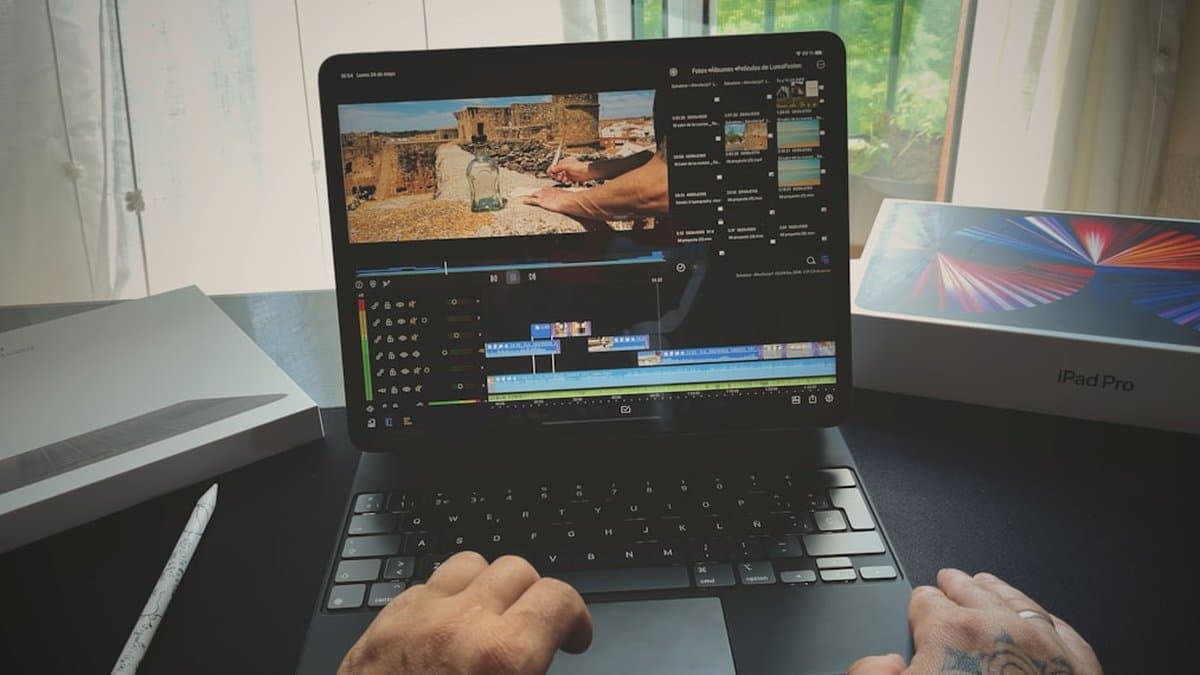
Converting horizontal footage to vertical format doesn't have a one-size-fits-all solution. The method you choose depends on your content type, timeline, and how much creative control you need. Let's explore both approaches and help you decide which works best for your workflow.
Traditional Manual Cropping Techniques
Manual cropping gives you complete creative control over every frame. You can precisely position your subject, adjust the framing mid-shot, and make deliberate composition choices that match your creative vision. This approach is perfect for cinematic content, documentaries, or any footage with complex, moving subjects that need thoughtful attention.
However, there's a significant trade-off: time investment. According to Life Inside, manual frame-by-frame adjustments can consume hours of editing work, especially as your video library grows. If you're working with just one or two carefully crafted pieces, the payoff is worth it. But if you're sitting on dozens of videos that need converting, manual editing simply doesn't scale.
Warning: Manual cropping requires consistent attention. One missed frame or sloppy transition can break the viewer's immersion, so this method demands patience and editing expertise.
AI-Powered Auto-Reframe Technology
AI auto-reframe technology has completely changed the game for bulk content conversion. These tools use intelligent subject detection to automatically identify your main focal point and reframe footage in seconds. According to Async, AI reframing solutions can process multiple videos simultaneously, making them ideal for creators managing large content libraries.
The speed is genuinely impressive—what might take 30 minutes of manual work happens in moments. AI tools excel at talking-head videos, interviews, podcasts, and any content with a clear, stationary subject. The technology learns where viewers should focus and adjusts automatically, delivering consistent, professional results without manual intervention.
Pro Tip: AI reframe tools are particularly effective for user-generated content, educational videos, and social media clips where speed matters more than pixel-perfect precision.
When to Use Each Approach
Here's the practical breakdown: Choose manual cropping when you're working with premium content where composition directly impacts storytelling—think branded videos, short films, or content where every detail matters. You have the time to invest and the skill to execute it.
Choose AI auto-reframe when you need quick turnaround on high-volume content. If you're repurposing webinars, interviews, or talk-show clips into vertical shorts, AI will save you days of work. The hybrid approach? Use AI for the initial reframe, then manually refine those key moments that deserve extra attention.
The real question isn't which method is "better"—it's which aligns with your workflow, timeline, and quality standards.
Now that you've figured out which conversion approach works best for your needs, let's talk about the tools that can actually make the job easier and faster. Whether you're going manual or automated, having the right software in your corner can be the difference between a smooth workflow and a frustrating one.
Best Tools for Converting Horizontal to Vertical Videos
Now that you've decided between manual cropping and AI auto-reframing, let's explore the actual tools that make the conversion process smooth and efficient. Whether you're working on a desktop, browser, or smartphone, there's a solution that fits your workflow. According to CapCut, modern conversion tools can preserve video quality while automatically detecting and framing the most important content—no watermarks required. The key is finding the right balance between ease of use, output quality, and features that match your content creation style.
Free Online Conversion Tools
Browser-based tools are your fastest option when you need quick conversions without installing software. VEED and Clideo deliver seamless horizontal-to-vertical transformation directly in your web browser, making them perfect for creators who jump between devices. These platforms handle the heavy lifting—you upload, select your aspect ratio, and download within minutes. They're ideal for social media managers handling multiple assets or anyone who prefers not cluttering their computer with editing software.
Pro Tip: Browser-based tools work great for batch processing if you're converting multiple videos. Many allow you to queue uploads, saving you time across your entire content library.
Professional Desktop Software Options
For creators demanding precision control and advanced features, Adobe Premiere Pro remains the gold standard. According to Storyblocks, Premiere Pro allows you to set exact crop effects and sequence settings for 9:16 format with pixel-perfect accuracy. Descript offers another powerful alternative, combining AI-powered face detection with intuitive reframing that automatically keeps talking heads centered—a game-changer for podcasters and interview content.
CapCut's desktop version bridges the gap between professional and accessible, delivering enterprise-grade AI auto-reframe technology without watermarks while maintaining full quality preservation. Riverside integrates conversion directly into existing workflows, making it invaluable if you're already using it for webinar or podcast recording.
Professional Option
Creator-Friendly Option
Mobile Apps for On-the-Go Editing
Don't underestimate what smartphone apps can accomplish. CapCut and InShot enable full vertical conversion directly on your phone, letting you record, edit, and post without touching a computer. This is invaluable when you're capturing spontaneous content or need to repurpose footage immediately for maximum platform relevance.
Key Point: When selecting your tool, consider cost, learning curve, batch processing capabilities, output quality, and whether it integrates with your existing editing workflow. The "best" tool is the one you'll actually use consistently.
Now that you've found the perfect tool for your needs, let's walk through exactly how to use it. We'll break down the conversion process into simple, manageable steps so you can transform your horizontal videos into stunning vertical content in no time.
Step-by-Step: Converting Your Video to Vertical Format
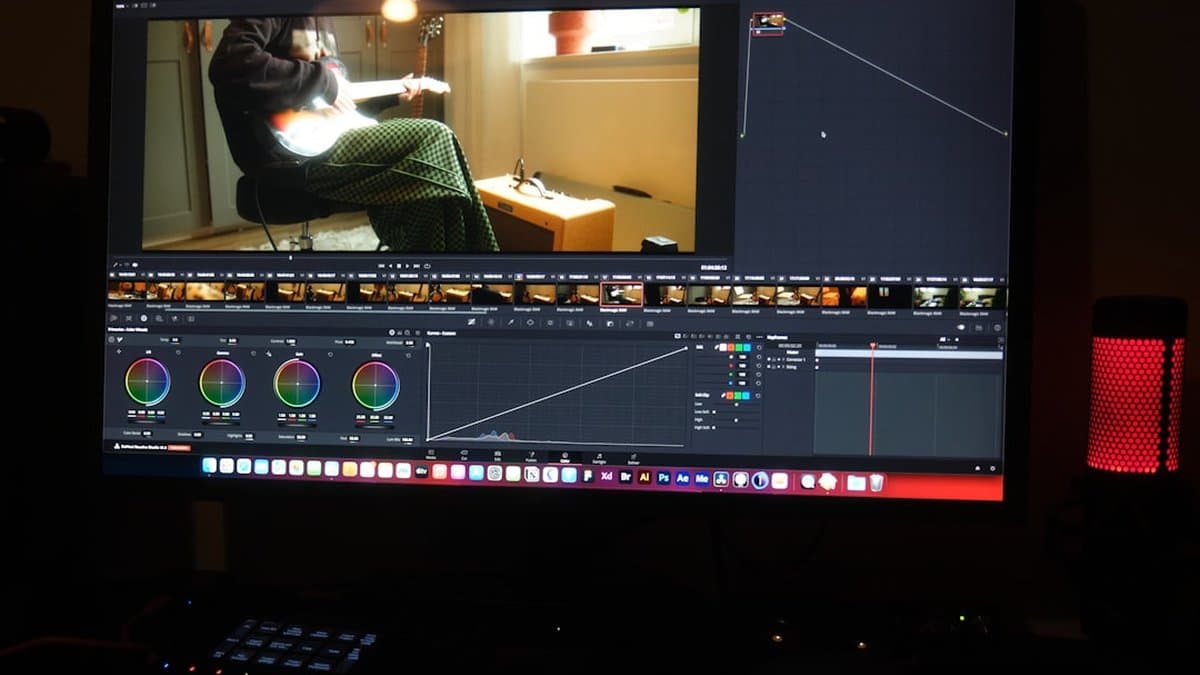
Now that you've chosen your conversion method and picked the right tool, it's time to actually make the transformation happen. Converting horizontal footage to vertical isn't complicated—but getting it right requires attention to a few critical details. Let's walk through the process step-by-step so your final vertical video looks polished and professional, not awkwardly cropped or distorted.
Setting Up Your Project with Correct Aspect Ratio
The foundation of any successful vertical conversion starts with creating a project that uses the correct aspect ratio from day one. You'll want to establish a 9:16 aspect ratio (portrait orientation) rather than trying to squeeze horizontal footage into a vertical frame haphazardly. According to Storyblocks, the standard HD vertical video resolution is 1080x1920 pixels, which gives you crisp, mobile-optimized content.
When setting up your project or sequence in your editing software, don't just import your horizontal footage and hope it works. Create a new sequence specifically configured for vertical dimensions. This ensures every element—from text overlays to graphics—is positioned with vertical viewing in mind from the start. If you're working in Adobe Premiere Pro, DaVinci Resolve, or CapCut, take the extra minute to adjust your sequence settings before importing your clips.
Pro Tip: Save your vertical project settings as a template so you can quickly apply them to future conversions without reconfiguring each time.
Reframing and Positioning Your Subject
Once your project is set up, import your horizontal footage and position it strategically within the vertical frame. The key is ensuring your main subject stays centered and prominent—this is what viewers should focus on. Rather than simply stretching or cropping your original footage, think about which portion of the frame contains the most important visual information.
According to CapCut, you have two main options here: manual positioning or AI auto-reframe technology. If you're using AI tools, they'll automatically track your subject and adjust framing throughout the video. For manual control, use keyframes to adjust the position and scale as your subject moves—this keeps things looking natural rather than static and zoomed.
Scale your footage strategically to fill the vertical frame without excessive cropping that removes critical visual information. A good rule of thumb: if your subject becomes unrecognizable or important context disappears, you've zoomed too far. Before finalizing, preview your content on an actual mobile device to verify the framing looks natural and any text remains readable at smaller screen sizes.
Exporting Without Quality Loss
The final step is exporting your vertical video in a way that maintains quality across platforms. This is where many creators stumble—choosing wrong compression settings can leave your video looking blurry or pixelated on mobile devices. According to Async, maintaining your original bitrate and resolution is crucial for preserving visual quality.
Use the H.264 codec for export, as it offers excellent compatibility across Instagram, TikTok, YouTube Shorts, and other major platforms while keeping file sizes manageable. Export at your full 1080x1920 resolution rather than downscaling—platforms will optimize from there. Before bulk converting your entire video library, test uploading one finished video to your target platform and watch it on mobile to ensure quality meets your standards.
Warning: Avoid exporting at lower resolutions or bitrates to save space—the quality loss will be immediately noticeable, especially on larger mobile screens.
Now that you understand the importance of maintaining quality during export, let's explore some other pitfalls that can derail your conversion process. In this section, we'll walk you through the most common mistakes people make and how to sidestep them entirely.
Avoiding Common Conversion Mistakes and Quality Issues

You're almost at the finish line! You've chosen your conversion method, picked your tool, and worked through the conversion process. But there's one final critical step: making sure your vertical video actually looks great—not just technically correct. This section covers the common pitfalls that even experienced creators stumble into, and more importantly, how to avoid them entirely.
Preserving Visual Quality During Conversion
The biggest mistake creators make when converting horizontal footage to vertical is over-cropping. When you crop too aggressively, you lose context, create a claustrophobic viewing experience, and often cut out crucial visual information that makes your content work. Aim to preserve at least 60-70% of your original frame when cropping to vertical—this keeps your composition breathable while staying true to the aspect ratio.
But here's where it gets tricky: not all footage is static. If your horizontal video has movement—someone walking across the frame, a camera pan, or action unfolding across the width—a single static crop will miss half the story. This is where tracking or manual keyframes become essential. According to CapCut, using keyframe-based cropping allows you to follow action dynamically, ensuring no important moments get cut off as subjects move through the frame.
Warning: Watch carefully for cut-off text, logos, watermarks, or other important visual elements that fall outside your vertical frame boundaries. Preview your entire video frame-by-frame to catch these issues before publishing.
Framing Mistakes That Ruin Vertical Videos
Your starting shot composition matters way more than you might think. Medium and wide shots translate best to vertical format, while extreme close-ups often feel uncomfortably cramped on mobile screens. If your original horizontal footage relied on establishing shots or landscape elements to set the scene, those won't work well when reframed vertically—you'll lose the context that made them effective.
Another sneaky issue: the edges of your horizontal footage often contain things you don't want visible—microphone stands, crew members, reflections, or equipment that was safely outside the frame during horizontal shooting. When you reframe to vertical, these unwanted elements suddenly become visible in your composition. Always scan the edges carefully before locking in your crop, especially if you're pulling from professional video shoots where such elements were deliberately excluded from the horizontal frame.
Pro Tip: When reviewing footage for vertical conversion, zoom in on the edges and corners of your horizontal video. This helps you spot technical elements or distracting background details you'll want to avoid when setting your vertical frame.
Technical Export Settings That Matter
Here's where many creators fall short: they nail the framing but then export their video with poor technical settings that degrade quality. According to Async, minimum resolution should be 1080x1920 pixels for professional-quality vertical videos. Never try to upscale low-resolution source footage—this creates fuzzy, low-quality results that look unprofessional on large mobile screens.
Compression settings are equally critical. Too aggressive compression creates artifacts and visible quality degradation that becomes glaringly obvious on social media platforms. Test your compression settings on multiple devices and platforms before finalizing—what looks acceptable on your computer monitor might look terrible on an iPhone. Most professional creators aim for a bitrate between 5000-8000 kbps for vertical video, which balances file size with visual quality.
Now that you've got all the technical details down—from upscaling tips to platform-specific bitrates—let's wrap up what we've covered and give you a quick recap to take with you. Here's everything you need to remember as you start optimizing your short-form videos.
Conclusion
You now have everything you need to transform your horizontal video library into mobile-optimized vertical content. Here's what we've covered: vertical video dominates mobile consumption with over 70% of viewing happening on upright screens, choosing between AI auto-reframe and manual cropping depends on your specific needs, selecting the right tool—from free options like CapCut to professional suites—matters for your workflow, and avoiding common pitfalls like poor export settings directly impacts your final quality.
The beauty of vertical video is that it's not complicated—it just requires a strategic approach. Start small by converting one video using a free tool to test your process. As you gain confidence, scale up your production. For creators managing multiple repurposing projects, tools like AutoShorts can streamline the entire workflow, handling everything from clipping to automated captions across platforms.
The mobile-first world isn't slowing down. Every day you wait to adapt is engagement left on the table. Your audience is already watching vertically—the question is whether your content will be there to meet them. Start today, and watch your reach soar.
Frequently asked questions
The standard aspect ratio for vertical videos is 9:16, which is optimized for platforms like TikTok, Instagram Reels, and YouTube Shorts. This format takes advantage of the full mobile screen space and ensures your content displays perfectly when viewers hold their phones upright. Different platforms may have slight variations, so it's worth checking each platform's specifications before publishing.
The best approach is to use AI-powered reframing tools that intelligently crop and adjust your footage while preserving the most important visual elements. Manual cropping is also an option if you prefer more control, but it requires careful framing to avoid cutting out key subjects. Whichever method you choose, test your converted videos on actual mobile devices to ensure quality meets your standards before publishing.
AI-powered conversion tools can transform horizontal footage into vertical format in seconds, while manual cropping and editing typically takes hours depending on the video length and complexity. If you're managing a large content library, automated solutions dramatically reduce the time investment and allow you to repurpose content at scale. The time savings make AI tools particularly valuable for content creators and marketers working with multiple videos.
Over 70% of digital content consumption happens on mobile devices held vertically, and platforms have optimized their interfaces to match this natural viewing behavior. When viewers see horizontal content on vertical platforms, they often experience friction—either having to rotate their device or squint to see the video—which increases the likelihood they'll skip your content. By prioritizing vertical formats, you align with how your audience naturally consumes content, resulting in better engagement metrics.
The biggest mistakes include awkward cropping that cuts off important subjects, failing to adjust text and graphics for the new frame, and not testing the final video on actual mobile devices. Using low-quality source material will also result in poor output, so start with the highest resolution footage available. Always review platform-specific guidelines before converting, as aspect ratio requirements and recommended dimensions vary across TikTok, Instagram Reels, and YouTube Shorts.
Yes, converting your existing horizontal footage into vertical format is an efficient way to maximize the value of your content library and reach new audiences on mobile-first platforms. AI-powered tools make it practical to convert multiple videos at scale without requiring extensive manual editing for each piece. However, you should evaluate each video's content and quality before conversion—some footage may work better than others depending on framing, subject positioning, and visual elements.